We remain fully operational. Our teams are working around the clock to ensure your deliveries continue safely.

DOWNLOAD THE APP


Customer Services
Copyright © 2025 Desertcart Holdings Limited
DOWNLOAD THE APP




Buy anything from 5,000+ international stores. One checkout price. No surprise fees. Join 2M+ shoppers on Desertcart.
Desertcart purchases this item on your behalf and handles shipping, customs, and support to Spain.
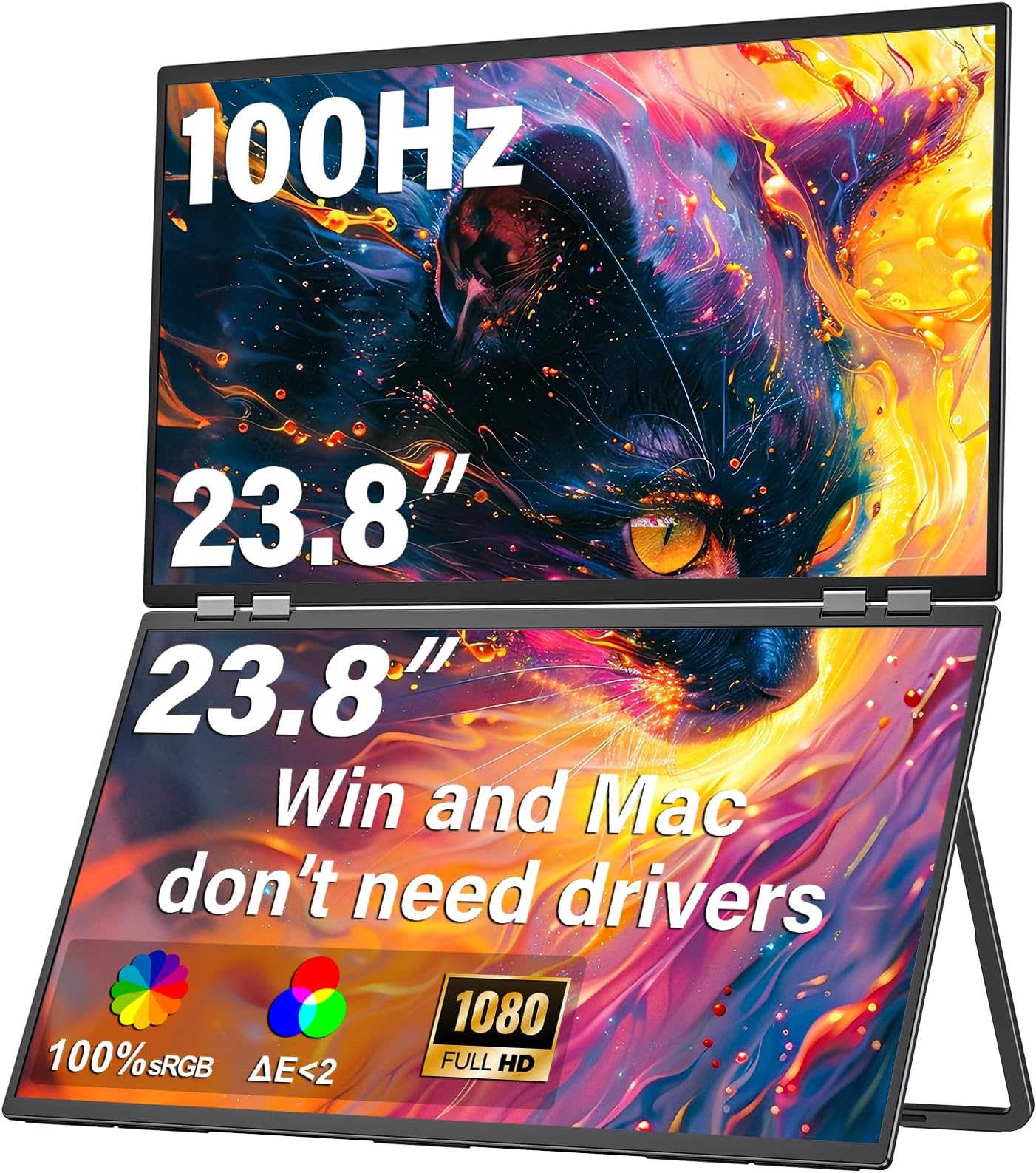
🚀 Double your screen, double your edge.
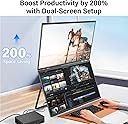
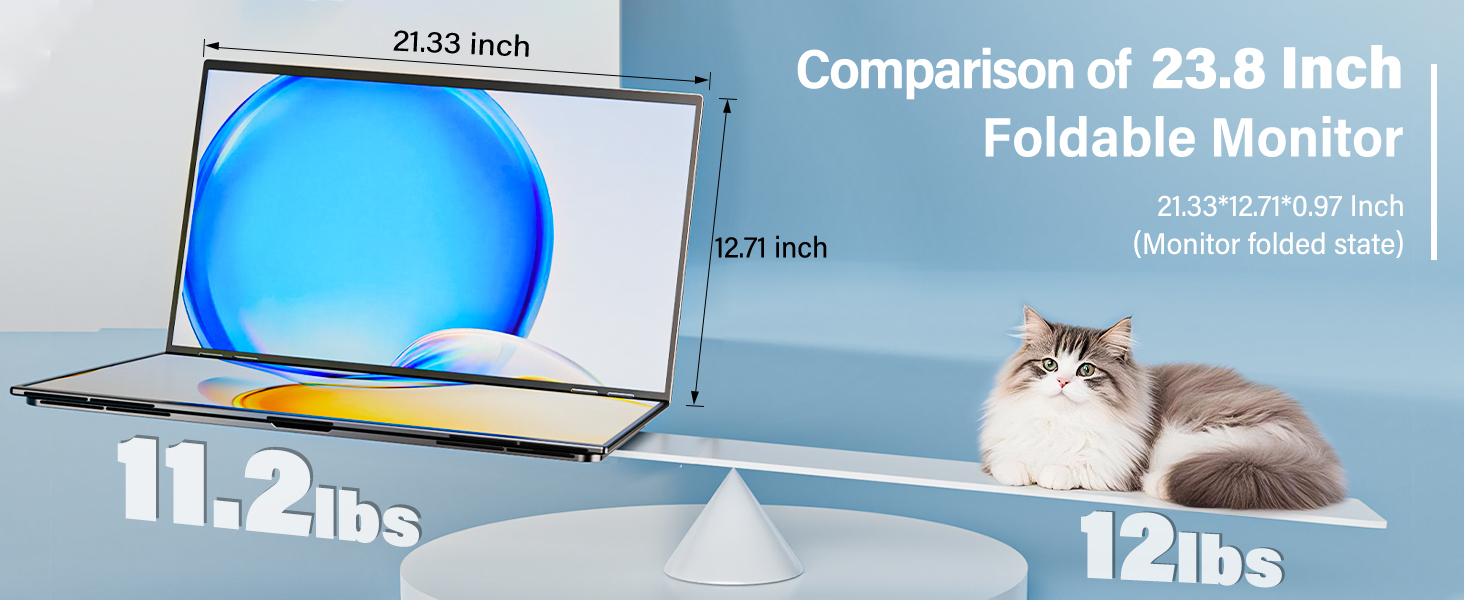
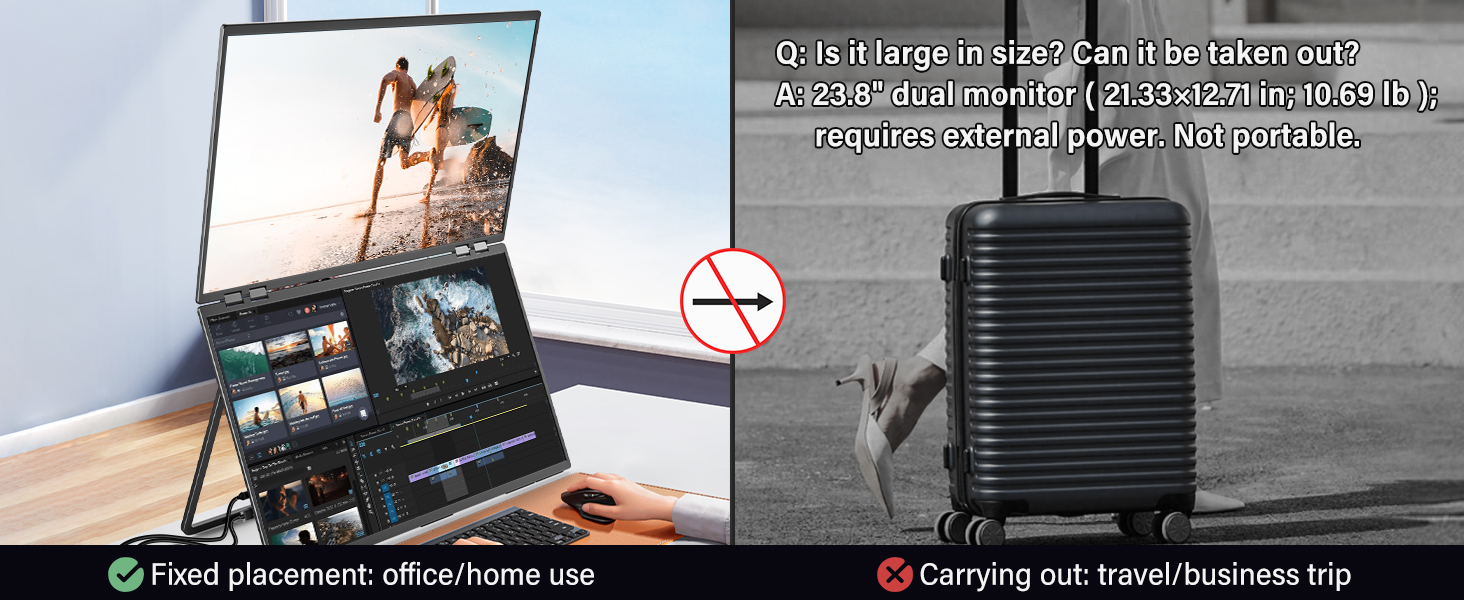
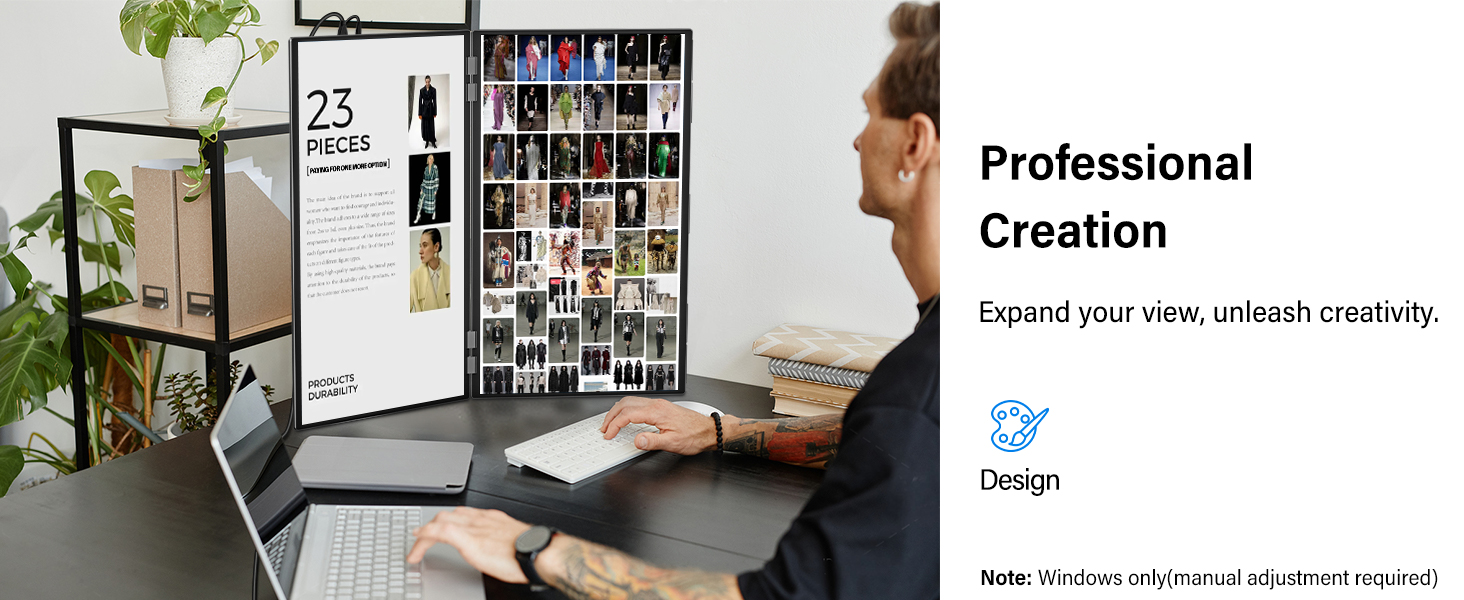
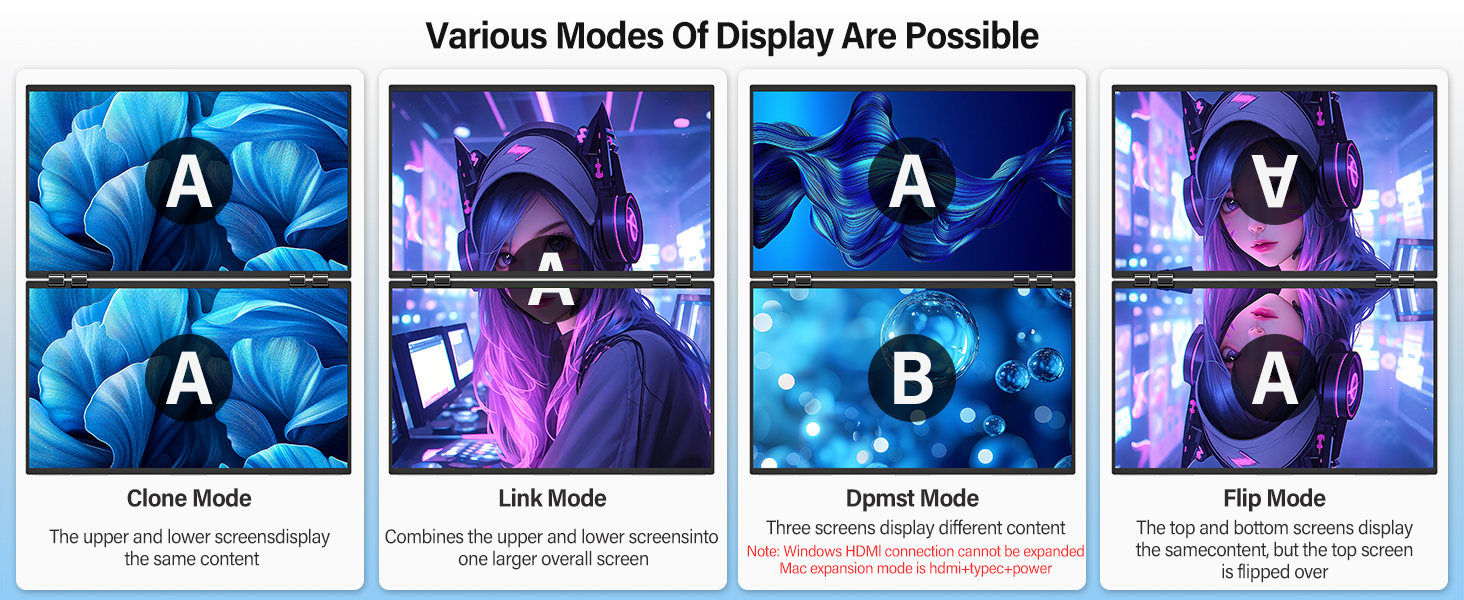
The InnoView 23.8" FHD dual monitor setup delivers vibrant 100% sRGB color accuracy and a smooth 100Hz refresh rate, ideal for professionals balancing creative work and multitasking. Its foldable, adjustable design saves desk space while offering versatile connectivity via HDMI and USB Type-C, compatible with both Windows and Mac systems. Perfect for elevating productivity in modern workspaces.






| ASIN | B0DGPNQY71 |
| Aspect Ratio | 16:10 |
| Brand Name | InnoView |
| Colour | black |
| Compatible Devices | Laptop, Desktop |
| Contrast Ratio | 2000:1 |
| Customer Reviews | 4.4 4.4 out of 5 stars (72) |
| Display Technology | IPS/VA with LED backlighting |
| Display Type | LED |
| Hardware Connectivity | HDMI, USB Type C |
| Has Color Screen | Yes |
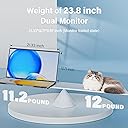
| Item Dimensions D x W x H | 1.7D x 54.2W x 32.3H centimetres |
| Item Weight | 5.78 Kilograms |
| Manufacturer | InnoView |
| Maximum Display Resolution | 1920 x 1600 Pixels |
| Model Name | INVPM609 |
| Model Number | PM609 |
| Native Resolution | 1920x1080 |
| Network Connectivity Technology | HDMI, USB Type C |
| Picture Quality Enhancement Technology | Standard color enhancement technology |
| Pixel Pitch | 0.56 |
| Product Features | Foldable |
| Refresh Rate | 100. |
| Resolution | FHD 1080p |
| Response Time | 3 Milliseconds |
| Screen Finish Type | Matte |
| Screen Size | 23.8 Inches |
| Shape | Rectangular |
| Specific Uses For Product | Photo Video Editing, Home Viewing |
| Total HDMI Port | 1 |
| Viewing Angle | 180 Degrees |
J**S
This dual 18"m 2K (2.5K) monitor is superb. I initially paired it with an older Surface Pro 6 and was not able to get it into Extend mode like a wanted. This was due to limitations of the Surface Dock video controller. I ultimately paired it with a Surface Pro 10 and it works perfectly in all display modes. I am also using a single Anker 130W Charger to power the Monitor and Surface. The display draws 21W at 100Hz, full 2560x1600 resolution, and 100% brightness. I have not been able to power the monitor through a single USB-C cable from the surface so separate USB-C is needed for display power (not unexpected). I am also able to power the monitor and laptop using a Baseus 100W, 20AHr Power Bank which shows is using 34W which suggest that the video USB is providing about 14W of power. On this Power Bank it reports that it will las about 2 hours. The monitor refresh rate does not have a big impact on power draw, but the brightness has an almost proportional impact on power. The kickstand is very versatile, and the monitor is very secure in any configuration. Even standing stacked vertically they are stable. The folding hinge is smooth but firm, there is little change of it slipping; perhaps after a few years they may start loosening but that remains to be seen. The screens are large, bright, and crisp. While 4K might be better for photo/video editing, these are perfect for normal business use and CAD work as I intend to use them. I bought a separate single 4K monitor for photo work. Out of the box the color/contrast closely match my Surface (at default settings); I did bump the monitor brightness up from the default 80% to 100% for a perfect match. I found a 17.3" Monitor Sleeve from CaseDeer that fits like a bespoke case. The monitor in the sleeve and my Surface drops perfectly into the laptop compartment of my TUMI fold-top backpack.
M**D
This monitor absolutely exceeded my expectations. The brightness is the real story here. The 400-nit rating is not marketing fluff. Sitting next to a MacBook Pro, I am running the Mac at about 60 percent brightness and this dual monitor at roughly 70 percent. That puts them in the same visual ballpark, and in some cases this display actually feels brighter. The fact that I am not running it anywhere near max is exactly what you want, especially for coffee shops, coworking spaces, or other well lit rooms. The resolution choice is also spot on. 2560x1600 per panel is a huge upgrade over Full HD without the scaling headaches of 4K. I can run it at 100 percent scaling and actually gain usable workspace. Compared to stacking two 1080p portable monitors, the difference in real estate is night and day. Code, terminals, logs, dashboards, and docs all fit naturally without feeling cramped. Build quality and image quality are both excellent for a portable. Color, contrast, and sharpness hold up extremely well next to much more expensive displays. The stacked form factor is incredibly productive, and the ability to fold it for face to face presentations is not a gimmick. It genuinely enables workflows you cannot do cleanly with a single external display. I have been using multi monitor setups for decades and this is one of the most practical and well balanced portable implementations I have seen. If you are on the fence because of the brand or the specs, do not be. This thing is phenomenal.
R**H
UPDATE - TO THOSE HAVING TROUBLE GETTING MAC TO SEE THIS AS TWO MONITORS As my original review stated, I had this working with my MacBook Pro as two monitors since I got it. Today, it started doing what others described - could use a USB-C cable to "fill" as a single 2nd monitor but could not get it to show up as 2 external monitors. Turns out that something about the monitor handshaking with the Mac can corrupt the plist (how the Mac "remembers" the monitor, arrangement, and resolution for the next time you use them). This is the procedure that fixed it and brought it back to 2 external monitors: 1. from a Mac terminal window, type, "sudo rm -f /Library/Preferences/com.apple.windowserver.displays.plist rm -f ~/Library/Preferences/ByHost/com.apple.windowserver.displays.*" and press return. You will need to type in your computer admin password. This wipes the cached file of monitor configurations, so it will forget any other monitor configurations you had - so you'll just need to reset resolutions and multi-monitor arrangements if you had any. 2. Make sure that "Fill" mode on the monitor is not on (top side button toggles "Fill On" and "Fill Off" but it takes about several seconds before the change occurs. It needs to be off for this to work. 3. Shut down the computer (not restart). 4. Unplug monitor from computer and from power for 15 seconds. 5. Plug in HDMI cable and plug in power to monitor. 6. Boot the MBP - when it is done booting, go into your display settings and you should see the monitor as a 2nd screen. 7. NOW plug in the USB-C video cable from the lower USB-C port on the monitor (the top one is for power) to the Mac. 8. It shows up as Innoview (2) and renames the other one as Innoview (1) -- two independent external monitors! You can independently set resolutions and arrange them however you like!! The way Mac's do EDID (External Display ID) is a bit different than PC's. That is why this seems to only be a problem on Mac computers. My guess (just a guess) is that the "Fill" mode capability on the dual monitors can confuse the EDID on the Mac and that info is then cached into the plist (memory of the monitor(s)). That is why simply deleting the plist treats it like its brand new monitor connection. BTW, HDMI cannot transmit power, but USB-C tries to negotiate power transfer whenever it is plugged in. That is why I suggested that you start with the HDMI and wait until all is working with that before plugging in the USB-C (and having the USB-C power cord plugged into the monitor before you connect it to the Mac). Original review The hinge is tight - but understandably so - any hinge loosens with age and you would not want this thing closing while using it. The screens are bright and long ago I switched to MacBookPros for color reproduction and these screens look fantastic - They are 18" screens, so they are big in by backpack, but that is not a complaint - it is simple math. If they ever came out with a 17" version that had less of a gap between the two screens, I'd likely buy it - just because my use case doesn't really require the two-sided A-frame capability. I saw some complaints about Apple compatibility - but without any drivers, my M4 MBP works perfectly with these. If I only use a Thunderbolt (USB-C form factor) on my computer, it treats the two screens as one tall screen. But if I use the HDMI and USB-C together, I get 2 external monitors - no problem. I ordered thin HDMI and USB-C Data cables to ensure easy use. Also (and this is physics, not a criticism of the monitors), 2 18" well-lit screens need more power than any laptop USB-C port will provide, so YES, an additional USB power source is required (comes included). I have a small 250W multi-port USB power block I travel with and use 2 of the USB-C ports (1 for the MBP and 1 for these screens). That leaves enough ports and power to charge my iPad, iPhone, and a small multi-device charger for 2nd iPhone, AppleWatch, and AirPodPros - all at the same time. I travel a lot - and now, I have everything I need all together. Setup? there is none - you plug it in.
C**X
I am very happy with these monitors.The displays have a really sharp image. The stacked design leads a lot more space on my desk. It was more complicated than I expected to connect the monitors to my computer. I daisychained a VGA to HDMI adapter and an HDMI to USB-C adapter to connect the top monitor to the VGA port on my computer.
F**R
This unit is a behemoth !! Be sure your computer has the ability to run 3 HD or 4K screens before purchase generally found on gaming computers. Let that be your benchmark.
Trustpilot
1 month ago
2 weeks ago