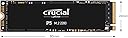
🚀 Upgrade your rig with Crucial P5 — where speed meets security in style!
The Crucial P5 1TB NVMe SSD leverages advanced 3D NAND and a high-performance controller to deliver blazing read/write speeds up to 3400/3000MB/s. Designed for gamers, designers, and tech pros, it features full-drive encryption, adaptive thermal protection, and a 5-year warranty with endurance up to 600TBW, ensuring fast, secure, and reliable storage in a sleek 2.5-inch form factor.


| ASIN | B087QRVVVH |
| Best Sellers Rank | 227,496 in Computers & Accessories ( See Top 100 in Computers & Accessories ) 1,269 in Internal Solid State Drives |
| Box Contents | 1TB NVMe, PCIe Solid State Drive |
| Brand | Crucial |
| Brand Name | Crucial |
| Cache Memory Installed Size | 1 |
| Color | Black |
| Compatible Devices | Desktop, Laptop |
| Connectivity technology | PCIe |
| Customer Package Type | Standard Shipping Package |
| Customer Reviews | 4.8 out of 5 stars 9,867 Reviews |
| Data Transfer Rate | 3400 Megabits Per Second |
| Digital Storage Capacity | 1000 GB |
| Digital storage capacity | 1000 GB |
| EU Spare Part Availability Duration | 5 Years |
| Enclosure Material | 3D NAND |
| Form Factor | 2.5-inch |
| Global Trade Identification Number | 00649528823311 |
| Hard Disk Description | Solid State Hard Drive |
| Hard Disk Form Factor | 2.5 Centimetres |
| Hard Disk Interface | PCIE x 4 |
| Hard disk form factor | 2.5 Centimetres |
| Hard disk interface | PCIE x 4 |
| Hard-Drive Size | 1 TB |
| Hardware Connectivity | PCI Express 3.0 |
| Installation Type | Internal Hard Drive |
| Item Type Name | NVMe PCIe Solid State Drive |
| Item Weight | 0.02 Kilograms |
| Manufacturer | Crucial |
| Manufacturer Part Number | CT1000P5SSD8 |
| Media Speed | 6 |
| Model Name | Crucial P5 1TB 3D NAND NVMe Internal SSD, up to 3400MB/s - CT1000P5SSD8 |
| Model Number | CT1000P5SSD8 |
| Network Connectivity Technology | PCIe |
| Number of Items | 1 |
| Product Features | Dynamic Write Acceleration, Redundant Array of Independent NAND (RAIN), Multistep Data Integrity Algorithms, Adaptive Thermal Protection, Integrated Power Loss Immunity, Active Garbage Collection, TRIM Support, NVMe standard Self-Monitoring and Reporting Technology (SMART), Error Correction Code (ECC), NVMe Autonomous Power State Transition (APST) Support |
| Product Warranty | 5-year limited warranty |
| Read Speed | 3400 Megabytes Per Second |
| Special feature | Dynamic Write Acceleration, Redundant Array of Independent NAND (RAIN), Multistep Data Integrity Algorithms, Adaptive Thermal Protection, Integrated Power Loss Immunity, Active Garbage Collection, TRIM Support, NVMe standard Self-Monitoring and Reporting Technology (SMART), Error Correction Code (ECC), NVMe Autonomous Power State Transition (APST) Support Special feature Dynamic Write Acceleration, Redundant Array of Independent NAND (RAIN), Multistep Data Integrity Algorithms, Adaptive Thermal Protection, Integrated Power Loss Immunity, Active Garbage Collection, TRIM Support, NVMe standard Self-Monitoring and Reporting Technology (SMART), Error Correction Code (ECC), NVMe Autonomous Power State Transition (APST) Support See more |
| Specific Uses For Product | Business, Gaming, Personal |
| UPC | 649528823311 |
| Unit Count | 1.0 count |
T**3
A great upgrade with a good heatsink attached
Installation was iffy, as I didn't have the right screws, and decided to improvise with a longer but still functioning screw. Just a note that you should also purchase m2 screws with this. When installing a BeQuiet! heatsink (with copper pipes) it was amazingly easy and it functions since my temperatures are almost equal to my games SSD, both at idle. Speeds are amazing, but Task Manager makes it look slow when you look at the Read Write speed values. Loading times are above expected, as it takes literally 5 seconds from the BIOS options screen (not POST, since you get a delay for choosing options after the POST) before the login screen loads in. Discord loads in twice as fast, and Opera GX finally loads as normal, and doesn't skip the little intro when it starts. OBS is what reveals it's true power. The finalisation speeds of any recording is so incredible, that it doesn't even get to show you the prompt before it is complete. Overall, this is an amazing upgrade from a 5200RPM Hard drive, and is worth your money when purchased with a BeQuiet! MC1 Pro NVME Cooler. The storage capacity should be just enough for anyone who has another SSD for extra storage, especially for fellow gamers with an entire Steam Library of games.
J**T
Fantastic Drive. Transfering a system my not go smoothly, make sure to backup first.
Bought to upgrade my partner's PC. Partner's comments: If adding as an extra drive, no problems. If replacing the drive with the operating system (Windows in this case), the system can be cloned from the existing drive to one of these devices. It took about an hour to clone my 1TB SanDisk Ultra II drive to this one. Once cloning is complete (the software is available from Crucial if you don't already have it), make sure to shut down the computer and disconnect the original drive. It is possible that there will be issues with driver configuration, Crucial are helpful and there are documents to help. In my case the cloned image would not boot so I just installed Windows from scratch to the new drive. I had a backup of all my documents and pictures on an external drive. Acronis, who make the cloning software that Crucial supply, recommend a full system backup as the preferred method of getting the old system onto the new drive. I did not try this, and it does require somewhere to backup the full drive to. Now my system is working, copying large files is very much faster than on the old drive, and starting programs is also noticably faster.
P**L
Faster than the Flash versus Superman in the 100m sprint!!!!
How can something SO SMALL be so dang quick??? Windows is booted up before I can blink, and no waiting around for start-up programs to load, nope, not with this bad boy! Once you hit the Desktop (8-10 seconds flat) you can be playing a game 4 seconds later. I never knew playing my games on an old Western Digital HDD was wasting so much of my life waiting for windows to boot, and sitting at loading screens with a disgruntled sigh, whilst picking my nose.... waiting, and waiting. This tiny magical stick has changed my life. It's the shape of a ram stick, but around 4 times smaller, and about 2-3mm thick. Benchmarking it shocked me. over 3000mb/s. I thought my 2.5" SATA SSD was speedy at 400mb/s. As long as you have a relatively new Motherboard which has a Gen 3 M.2 SSD port you are going to thank me for reccomending such a piece of hardware. This is INSANE! It seems like every time they make something smaller it gets faster/better by an order of magnitudeI only got the 500GB one, my trusty Kingston 240gb SATA SSD, and a 7200rpm 2TB BarraCuda with a 256 cache SATA HDD. I think nearly 3TB of storage space should be enough for now, yet one can never be sure with some games taking up over 100GB of disk space now. Maybe I'll grab another of these (a 1TB one....just to be sure). Honestly, I think our governments are in contact with aliens and jacking their technology. I remember buying a Crucial MX100 256GB around 6-7 years back, and being in awe of the speeds......read speed of 415, write speed of 319, and a mixed speed of 288, Now we have something 90% smaller, well under a decade later my read speed is 2673, write speed is 2350, and mixed speed of 1524! 10 times smaller and 6 times faster. We need to get into Area 51 and steal that alien technology, QUICK!!!! LOL
K**N
Amazing SSD
This product was perfect for me, well packaged and free Cloning software from the Crucial website made the update path very simple! Works well in my Dell Laptop which met the compatibility test, so basically plug and play and very quick to do. This is the third laptop I have upgraded with Crucial SSD's and all went smoothly without any issue and perform well. Conventional 'spinning' HD to SSD provides an amazing performance boost.
M**9
Very fast and great value for money!!!
I wish I had bought this ages ago, my laptop is so fast now. The price is great <£50 and the performance is amazing. I went for the 500MB option as I did not need 1TB. Easy to install into my laptop and the the Acronis software downloaded for free from the Crucial website and used to clone all the information on the HDD is so user friendly. Cannot fault it at all
K**N
Ran too hot in an enclosure. Otherwise very good.
This ran too hot in an enclosure. Otherwise its a great product.
W**H
Great value for the money!
For the size and speed of this drive, I think it's great value for the money. I'm using this as my OS drive which I needed to format in order to upgrade to Windows 11. Installation was a bit tricky since my gpu and fan were in the way but I imagine a new build would be trouble free. Cloning the drive was a breeze and so far it's running like a dream.
K**N
Very highly recommended
An incredible change! It replaced a standard 2Tb hard drive that had been used in the PC from new, about 5 years ago. It’s a high spec video editing PC running Windows 10 Pro, 32Gb RAM and separate hdd’s in RAID 0 for video files. I was drawn to this from a review that showed how the price had dropped recently. I was pleased that my Gigabyte GA Z170 motherboard was advanced enough to make it compatible (even though 5 years old). It was a simple matter fitting it to the motherboard then using the provided Acronis software to clone the original C hdd to the SSD, disconnect that drive then boot from the SSD. The speed difference was amazing! From fully booting up in about 30-35 seconds (previously about 150 seconds) and doing everything so fast. A fairly accurate comparison would be the time to clone a hdd to hdd of 9 hours using USB 3.0. Then the hdd to SSD about 90 minutes!!! At roughly 4 x the cost of a mechanical hdd, its not cheap. But the feel to video editing and Photoshop use is amazingly improved.
C**S
Ótimo SSD
Comprei para fazer upgrade no Dell G15 e instalei sem problemas, tem uma boa performance.
A**M
Fast as expected. Easy to Clone your OS
The SSD is operating as expected. It is fast and everything is great. I have been mulling over this upgrade for over 5 months now. I needed something faster than a 7200 rpm HDD to support my local server installations. This solution is working just fine. What surprised me most was how easy it was to copy over my windows installation to the new SSD from my existing HDD. Login to the Crucial website and download the Disk clone utility. Crucial has provided Adonis for the disk clone. After installation of the software suite, just select the source and destination and hit go. I had about 300 GB to be copied over and that took about 3 hours. I rebooted my PC and manually entered the boot menu (press F2 on ASUS while on the startup screen). Now there were two entries. I selected the second boot option and changed the boot order. And that is it, Windows booted up on the new SSD which had arrived 4 hours back. No hassle of installing the drivers or supporting software. Everything copied over just as is. All my projects and even the RDR2 save game was copied over with success. Next step was to just re-format the HDD and I was done with the upgrade.
C**N
Excelente SSD, muy recomendable
Una unidad SSD que ha demostrado ser muy fiable con el paso del tiempo. Desde su instalación, el rendimiento ha sido excelente, con una gran velocidad de lectura y escritura que se nota en el arranque del sistema y en la carga de aplicaciones. El funcionamiento es estable y constante, sin pérdida de rendimiento incluso después de años de uso. Es silenciosa, eficiente y mantiene buenas temperaturas en condiciones normales. La mejora frente a un disco duro tradicional es muy notable, haciendo que el equipo se sienta mucho más rápido y fluido en el día a día. En general, es un producto muy recomendable por su fiabilidad, rendimiento y durabilidad a largo plazo.
R**K
You Do Not Know What You Are Missing UNTIL You Add This To Your Computer
The Crucial P5 500GB HD (3400/3000MB/s) did what was asked and more. It definitely made our office HP 15-cs3073cl laptops all around better performing. It is a really decent laptop, but the hard drives (1TB 5400rpms are garbage). It was an easy way (cost efficient as well) to upgrade a our laptops (that supports NVME M.2 with a M Key - the little slit on its end. There are B keys, M Keys and B/M Keys on different M.2s) so you are way ahead of most admin/staff laptops in school districts. Now, I have this super fast Crucial HD as my main hard drive and the old 1Tb 5400rpm HD as by back up. This is great because I have speed and still space to store pictures and videos, etc.. So, if you have a laptop and it can use a MVME M.2 HD w/ a M-Key, do not hesitate to purchase this one. A+ Product. UserBenchmarks: Crucial's P5 500gb M.2 got a score = 258% (exceptional.) My WD Black SN750 NVMe PCIe M.2 1TB got a 283% (exceptional.) My Samsung 860 Evo 500GB got a 118% (Outstanding). My WD Blue 1TB (2012 - 102% Outstanding. The original HP15 WD WD10SPZX-00HKTT0 (5400rpm) got a 61.7% (Good...BUT IT IS SO SLOW next to a SSD or M.2.) If this was a grading scale...a 61.7% is not good it is barely passing in education. Plus, it is really easy to see the difference. Startups, downloads, and updates take FOREVER on the the 5400rpm HD. If you have never updated your drive...then you do not know what you are missing. Just saying.... Side note: This is the easiest area to cut costs when purchasing a laptop/computer and EASIEST way to update it on a budget and still save money in laptops and computers. Ram is another area. Crucial makes both. Latops - you typically can't upgrade much other than the HD and RAM. Most higher end laptops have some wiggle room, but not in all cases. When you buy it...if they give you "upgrade options"...then you know where you can add or subtract down the road. Keep in mind that in some cases they even solder the RAM to the board - which makes it difficult to do much there. To Clone: Crucial makes it easy. All you have to do is... (You must have a M.2 connection and a SATA connection. At least one of each to do the following. Otherwise, you will need to search online on how to clone your hard drive with what your present setup looks like.) Most laptops and computers have at least 2 connections. One may be M.2. If it is not, then do not but this hard drive. You can use my directions below, but not with this hard drive. 1.Download the Software and Install it: Acronis True Image for Crucial (other brands have the same thing also) - do a search Crucial Clone Software. 2. Install the new hard drive. DO NOT REMOVE your old hard drive at this time. Please leave your old one in as your MAIN still. Let it boot up. 3. Find your NEW HD. It can be found by running DISK MANAGEMENT on your computer and formatting your new drive to add it to your computer. (It should be found under "THIS PC" shortcut on Win10. 4. Make sure your new hard drive is the same size or larger than your old one. (Remove some programs that are easily reinstalled - like video games if you need a little space.) You want to CLONE everything over to the new one. I went from 500gb to 500gb...the amount moving over was smaller than the new empty hard drive. I deleted a couple of video games too - off the record of course. :) 5. Start Acronis software and Clone (under tools) your old one onto the new one. If the old one is a 5400rpm HD...go eat lunch or dinner. You will have some time. Our 500gb - 5400rpm HDs took about 30-45mins. A 500bg 2.5 SSD - 10 minutes max from start to finish. 6. Once it is cloned, turn off your computer and either disconnect the SATA connection or take out your old hard drive. Start up your computer and it will find the new hard drive. If the process results in a corrupt set of files on boot, I did not mess with it. I reinstalled my old one and booted from it and formatted the new drive and started over. (I was not wasting time "fixing" a fresh CLONE. Who was to say other errors might not show up later?) I wanted to be safe versus sorry. Shortcuts get me in trouble sometimes. 7. Once you are ready to boot form the new drive, disconnect the old one again. If it boots, then it should be your main one now for booting. 8. You can shut it down and reconnect or install the old one and it should be your backup drive now. Go to "THIS PC" and see which one is your "C" and which is your "D". If it is not correct, you should have noticed the load up time in the beginning was ridiculous if using the 5400rpm and/or it is labeled as "C". How do know which is which? Well, once I clone my original drive, I delete something off of it to make it smaller. Secondly, I look at the total sizes. Typically those are not identical. In my case, one is 464gb and the other is 931gb. Pretty easy for me to tell them apart.) 9. If everything worked out and the M.2 is now your main drive, then you are good to go! Enjoy. 10. If it did not work, then you will need to shut your computer down and go into your bios. If you do not know how to get into it...look it up. Some are f2, others are f8 or F12 and mine was F10. 11. Hold the specific F-key down when you restart it and enter the bios. You will need to change the HD boot order. It needs to be your M.2 first and then the other drive. Save your progress and restart. 12. Check how fast it starts up. Then check "This PC" if it is correct, then all is well. 13. If it is not...then you probably did not save your work when you entered the bios. Try that again. 14. Most of this can be found on the internet as well. Best of luck. THANK YOU, CRUCIAL for making my upgrade EASY.
A**S
Super schnell - Große Wärmeprobleme in Ultrabook - ASUS ZENBOOK UX331UN
Mit 220€ waren die 2TB Crucial gerade vermutlich das beste Preis-Leistungs-Verhältnis für eine NVMe PCIe SSD Festplatte. Die gute Nachricht zuerst: ASUS Zenbook UX331UN - das funktioniert! Die weniger gute: Man muss was gegen die Wärmeproblematik unternehmen. So, der Reihe nach. Der ASUS Support wird in Deutschland offenbar von der Firma IPC mitbetreut -deutsche Anfrage wird nebenbei englisch beantwortet. Und die sagten auf meine Anfrage, ob statt der original verbauten SATA 6 SSD von Sandisk (500GB) nicht auch eine PCIe-SSD an diesem Slot angeschlossen werden kann, dass Ihrer Meinung nach das technisch nicht geht, weil eben eine SATA drinsteckt. CRUCIAL wiederum hat einen SSD-Beratungssoftware, daraus ergibt sich: Nein Ihr Gerät ist für die P5 Crucial 2TB nicht geeignet. Fein, wenn man es auf Englisch auch probieren kann - ASUS weltweit Support sagt dann nach 3-4 Wochen intensiver Suche im Web ohne konkrete Hinweise, ja, das geht, aber sie empfehlen wegen der Wärme nur die 1TB Version oder lieber die langsameren P1 oder P2 Versionen ... nicht die 2 TB Version, das hätte noch niemand getestet. Ja, also: Leute - unser ASUS UX331UN Zenbook hat zwar nur einen Port für die SSD, der ist aber erkennbar auf der Platine als Typ B und M gekennzeichnet - wir können also zweierlei SATA U N D die PCIe Version 3.0 mit 4 Lanes einstöpseln und es wird laufen ... Die Asus Leute haben aber nicht ganz unrecht - eingebaut und der Lüfter läuft hoch. Im Prinzip ist unser ZENBOOK ja ein ganz leises, außer vielleicht 30dB flüsterlaufendem Ventilator hören wir in der Regel nichts von unserem Notebook. Das ändert sich gewaltig bis nervig, weil aber offenbar nicht die SSD selber, also nicht die NAND Speichermodule so besonders heiß werden. sondern der vorne sitzende Controler vermutlich 70-80 Grad erzeugt, wobei die NAND-Bausteine vielleicht 60 Grad erzeugen und es so auf der Crucial-Testsoftware für die SSD zu keinem kritischen Hitzefehler kommt. Das bedeutet, wir überhitzen die wichtigen Bauteile der SSD im Normalgebrauch vermutlich nicht. Der Controler seinerseits gibt aber in die ultraflache Chassis des 13mm Netbooks so viel Hitze ab, dass der Prozessor selber weit über70 Grad erzeugt, was den Venti ordentlich ins Pusten bringt - also dauernd möchte ich das nicht ertragen. Zu viel Gerödel und manche Ventis fiepen gerne ultrahoch. Da wir noch 3-4mm Luftraum über der m2 2280 SSD haben, die P5 Crucial ist auch (wichtig für unseren Steckplatz) nur einseitig bestückt, die dem Board zugewandte Seite ist eine leere Platine mit Aufkleber, können wir noch an einer passiven Kühlung der Karte arbeiten. Mangels passendem Kühler zur Hand habe ich einige ein Millimeter hohe Stahlunterlagsscheiben genommen und einfach mal nur mit TESA vergeklebt. Es ist also noch keine optimale Wärmeleitbrücke zwischen SSD und Stahlscheiben entstanden >>> siehe Foto, aber ich habe die Temperatur des Gesamtsystems von 72-79 Grad damit wieder auf 54-60 Grad heruntergebracht und bei normalem Arbeiten ist das System jetzt wieder fast gut. Last bitte NIE DIE STAHLSCHEIBEN die PLATINE berühren – das kann der Tod des Notebooks sein KURZSCHLUSS. Neue Platine kostet ein paar Hundert !!!! NACHTRAG: Zwischenzeitlich habe ich 2 Graphene-Kühler mit 3mm und 4mm eingebaut. Den 3mm auf die SSD und den 4mm auf deie 4 festverbauten Hauptspeicherchips. Das Gesamtsystem neigt trotzdem weiter zu Hitzeentwicklung. Allerdings ist es mir in 4 Wochen bisher mit keiner ANwendungssituation bis hin zu Filmrendern gelungen eine kritische Temperaturwarnung für die SSD zu erhalten. Bestens. Auch im Lastbereich bleibt die SSD meist jetzt zwischen 59-65 Grad, eigentlich erreicht sie keine 70 Grad mehr mit den Graphenekühlerstreifen. Das Gesamtgehäuse allerdings erreicht öfter Temoeraturen zwischen 60-78 Grad und dann ist der Lüfter deutlich zu vernehmen. Reine Office-Anwendungen kann es sein, dass der Lüfter abschaltet. Website, die viel "ausforschen" wie beispielsweise das chinesische Amazon - aliexpress - stressen das System oft und die Temperaturwerte gehen hoch. Und es ist nicht die Zusatzgrafikkarte, die Läuftauch schön zwischen 50-70 Grad. Noch einmal verbessern konnte ich die Wärmebelastung durch zwei Softwareanwendungen der Crucial SSD. Crucial bietet eine Software namens Crucial Storage Executive (exe) an - auf der Herstellerseite herunterladen und dann gibt es ZWEI Sachen: Erstens den Momentum Cache aktivieren und (ist nicht so wichtig wie erstens) zweitens das Over Provisioning aktivieren - letzteres nimmt einem allerdings ein paar Prozent vom Speichervolumen der Disk weg. Aber gut, wenn's dafür ruhiger wird. Was beides bedeutet … googeln Leute! Und ich habe in die vorhandenen16 GB Memory nun auch eine virtuelle Festplatte T:/ (mit 6GB) eingerichtet (imdisk, free software oder arcsoft) und habe alle temporären Dateien dahin ausgelagert ... sämtliche temp. Systemdateien und besonders nervig meine Browser-Dateien, zB firefox und ms edge - die laufen jetzt alle schön im virtuellen T:\ und ich brauche nicht einmal mehr die SSD damit abnudeln ... und die hyberfil.sys habe ich auch rausgeworfen und die pagefile.sys deaktiviert ... jetzt ist Ruhe im Karton! Am Anfang nach dem Einbau zeigte natürlich die freie Testsoftware CrystelDISKMark stolze 3697 MB/s (read) und 3331 MB/s (write), doch das ist nur Show. Was durch die aufwallende Hitze wirklich passierte, konnte man sehr schön beim Kopieren innerhalb der SSD von einer auf eine andere Partition sehen: Die Kopierrate schnellte in Sekunden auf über 1000Mb/s hoch und wurde nach 5-7sec auf magere 100 MB/s gedrosselt, um dann wieder auf 400-600 MB/s hochzugehen für 2-4 sec und wieder auf unter 100 MB/s gedrosselt zu werden. Wie ein Yoyo - wenn der Gesamtvorgang 300-500 MB/s erbrachte, dann war es fast so gut wie eine alte SATA zum halben Preis. Dann kann man auch ein anderes Model einsetzen, wenn man die Temperaturproblematik nicht in Griff bekommt, wird die SSD im Alltagsgebrauch NIE auf ihre Geschwindigkeiten kommen, außer beim CrystalDISK-Test – das ist so ähnlich wie VW-Dieselskandal. Eigentlich sollte CrystalDiskInfo (andere Software) mir die Temperatur verraten - aber die Software meint, es sei keine Festplatte verbaut. Freundlicherweise liefert DrHardware (weitere freie Software) mir Temperaturwerte, allerdings nicht von der SSD direkt. Aber immerhin vom Innern des PC. NACHTRAG: Crystaldiskinfo 8.12 findet die SSD korekt. Neue Version war nötig. Augenblicklich läuft die Platte noch mit den Standard-Treibern, die das WIN10 H2 zur Verfügung gestellt hat, ich habe die Crucial-Treiber noch nicht gefunden. NACHTRAG: Es gibt wohl keine speziellen NVMe-Treiber für WIN10 von crucial. Jedenfalls - ich werde diese SSD behalten und hoffe, dass der in einigen Wochen aus China zu liefernden professionellen Passivkühler aus einem Kupfersockel und einem Graphene-Aufsatz (hab zwei bestellt 3mm und 4mm hohe Version) das Kühlproblem erledigt. Auch will ich dann in die Bodenplatte des Notebooks direkt über den Kanälen des Graphene Grills laufen, die vorne über dem SSD Controler sitzen noch ein paar zusätzliche Lufteinlasslöcher mit ca 2mm Durchmesser durchbohren. (Mache Notiz dann hier - geschehen >>> siehe oben!) Also – wer sich zutraut, dass er das Hitzeproblem der P5 Crucial 2TB meistert, dem kann ich zum Kauf raten. ++++++ ANLEITUNG zum UMZUG alte auf neue Platte ++++++ Und wer jetzt sagt, wie zieht man denn eine alte Platte auf eine neue Platte, wenn man nur einen Slot hat. Alte Platte mit Acronis (bei Crucial downloadbar) oder (meine Wahl) mit AOMEI-Backupper einmal das System backuppen auf eine entsprechend große externe Platte und einmal ein Abbild der ganzen Platte backuppen. (Schließen Sie alle Programme aber vorher - ich hatte blöderweise mein Emailprogramm (outlook) geöffnet und prompt wurden die Mails nicht in die Sicherung mitübernommen). Übrigens - sollten Sie über einen Rechner mit mehr Festplattenanschlüssen verfügen, auch einen für Ihre alte SATA m2 SSD, dann können Sie via USB-Stick ein Linuxprogramm Clonezilla verwenden. Der Rechner bootet mit LINUX und sie können die Festplatten klonen. Allerdings ist die neue P5 Crucial eine NWMe - also brauchen Sie dafür auch den passenden PCIe-Adapter in ihrem Kopierrechner - und das Ding extra wegen 1x kopieren kaufen rentiert nicht) Schritt 1b: Backup-Programm ebenfalls extern sichern, sie wollen ja später von neuer Platte aus zurückkopieren können. Schritt 2 Suchen Sie bei Microsoft nach "Win 10 creator" und laden Sie sich dort die Software zum "Sie möchten sich Windows 10 auf Ihrem PC installieren" die angebotene Software MediaCreationTool20H2.exe herunter. Starten Sie diese Software: Windows 10 Setup. Wählen Sie aus: Installationsmedien (USB ... ISO) erstellen. Beantworten Sie alle Fragen zu Ihrem neuen Wunschsystem. Stöpseln Sie einen USB-Stick mit mind. 5GB an und (er wird gelöscht!!!) die Software macht diesen Stick nun "bootfähig", heißt, der Stick kann einen Computer starten, auf dem eine völlig leere Festplatte ohne ein Betriebssystem verbaut ist. Jetzt haben Sie 2 Schritte von 6 geschafft: Sie haben die alte Platte gesichert, den USB-Stick startklar. Schritt 3: alte Platte ausbauen - Schrauben mit passendem Werkzeug (!!!!) öffnen - gibt keine verdeckten (zB unter Gummifüssen versteckt. NEIN). Deckel abnehmen. Vorsicht, mit der Ecke des Deckels nicht die Platine kontakten !!!! SSD am Kreuzschlitz lösen - herausnehmen. Schritt 4: neue SSD PCIe NVMe einsetzen in den m2 Slot - berühren Sie niemals die Kontakte!!! Statische Entladung. Schritt 5: Beim ersten Durchlauf nicht nötig, aber wer einen zweiten Start braucht (sollte diesen Schritt dann spätestens dann machen, für das erste Mal nicht nötig, weil die neue Platte hat kein System, also findet der PC selber den USB-Stick) ... der PC muss wissen, von welchem Medium er booten soll. Er sucht immer zuerst auf der SSD - Starten Sie den Rechner, drücken Sie F2 und warten bis Sie im BIOS des Rechners sind. Beim ASUS-BIOS sehen Sie rechts die Bootsequence - oben die Platte, an zweiter Stelle ihr angesteckter USB Stick mit dem neuen WIN10 ... ziehen Sie die Reihenfolge so, dass der USB oben steht. F10 - speichern und der Bootvorgang beginnt. Der Stick zaubert Ihnen nun ein nagelneues WIN10auf die neue Platte. Sie brauchen dazu keine Keys oder Anmeldeschlüssel. (bei späterer Dauernutzung schon, aber das wollen Sie ja gar nicht) Schritt 4: Installieren Sie das Backup-Programm (Schritt 1b) auf dem neuen Windowssystem. Schritt 5: Wählen Sie "wiederherstellen" aus, bei AoMEi dann Image wählen (auf der externen Platte) - ich habe es in zwei Schritten gemacht - erst das System wieder zurückgespielt - dann wird das gerade neue WIN 10 mit dem alten gesicherten System wieder überschrieben. Und dann habe ich das Gesamtplatten-Image wieder zurückgespielt. Man hätte es vermutlich auch nur mit Schritt „Gesamtplatte“ auf einen Rutsch geschafft. Schritt 6: Eigentlich fertig: ABER meine alte Platte hatte 4 Partitionen (Laufwerke C:,D:,E:;M:) und die sind nun in derselben alten Größe wieder auf der 4x so großen neuen Platte. Hm! Wenn man nun möchte, ist die Partitionen vergrößern. Soweit ich mich erinnere, kann man das mit Acronis tatsächlich problemlos. Ich habe es mit Windows Bordmitteln gelöst: Rechte Taste auf Windows-Symbol links unten: Datenträgerverwaltung. Und das geht, aber ist nicht so komfortabel. Dort sehen Sie Ihre(n) Datenträger 0 zB mit seinen Partitionen und ganz rechts noch schwarzer Balken - die noch unbelegten Teile der neuen Platte. Arbeiten Sie von hinten, also rechts, nach links, Richtung Festplatten Partition C. Ich richtete eine größere Partition mit Buchstabe L: ein - kopierte alle Dateien von D: dahinein. Dann löschte ich die leere D: und benannte L: in die nun größere D: um. Jetzt haben Sie rechts hoffentlich immer noch freien Platz, richten Sie wieder eine L: ein - kopieren alle von E: hinein, undsoweiter ... weil Sie können nicht einfach D: vergrößern, weil an beiden Enden C: und E: liegen - also müssen Sie so einen Verschiebebahnhof durchziehen, bis sie am Ende hoffentlich Ihre gewünschte Größe der Partitionen über die gesamte Plattengröße verteilt haben. HINWEIS: Wenn Sie später zur besseren Verwaltung des Laufwerks die Option „Over Provisioning“ auswählen, dann zwackt die Ihnen rechts wieder Speicherplatz ab - meine letzte Partition namens M: wurde dadurch später um 186 GB wieder verkleinert, das können Sie gleich mitplanen beim Hin- und Herschieben. Wem die Schieberei zu blöd ist - machen Sie eben eine neue Partition mit neuem Laufwerksbuchstaben auf. Hier in der Datenträgerverwaltung können Sie ein neues einfaches Volume auswählen (Namenstaufe nicht vergessen) und einen Buchstaben dazuwählen. FERTIG So, jetzt pfeift er schon wieder – das nervt – hoffentlich behalte ich recht mit den Graphene-Kühlern – die Wärme-Ableitfähigkeit ist höher als bei Kupfer, darauf baue ich. Geht besser, aber nicht so leise wie mit der alten SATA 500 GB SSD. ++++ Alte SSD als Backupplatte mit FIDECO Enclosure +++++ Zusatz: Für die alte SATA m2 (Sandisk 500) habe ich ein USB-Case gekauft. Achtung. Es gibt auch hier keine multifähigen Platinenträger; entweder NVMe oder SATA, irgendwie für beide Typen geeignete werden nicht angeboten derzeit. Schon ein Technikwirrwarr. Hab das Case zwischenzeitlich erhalten, FIDECO SSD Encosure SATA, 10 GB/s, und es mit Doppelklebeband einfach hinten auf's Display geklebt - toll aufgeräumt und aus den Augen ... ist jetz meine ext. Backup-Platte - passt gut. Nebenbei - sollten Sie die alte Platte wiedereinsetzen, dann hat die neue offenbar ihre eigenen UEFI-Einträge auf dem Board hinterlegt und ist damit nur wieder in Betrieb zu nehmen, wenn man eine Reparatur des Systems genehmigt. Da ich keine Lust auf Trouble habe, habe ich die alte SSD deswegen nicht mehr reaktiviert, sondern gelöscht, nachdem ich einigermaßen sicher war, dass alles gut angekommen ist auf der neun P5 Crucial.
Trustpilot
3 weeks ago
1 month ago