

🎨 Elevate your digital canvas with pro-level precision and wireless freedom — create like the future depends on it!
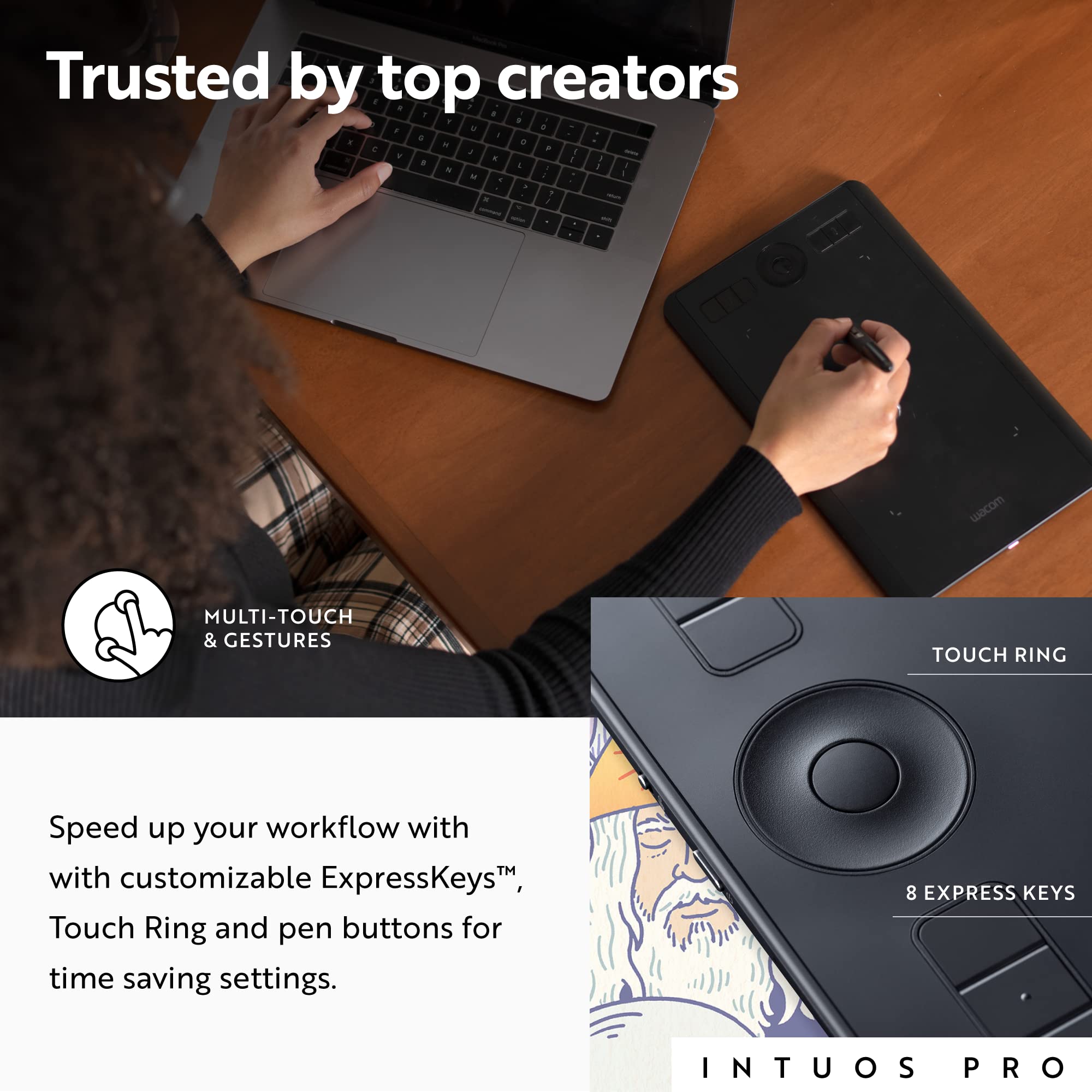
The Wacom Intuos Pro Medium is a professional-grade graphics tablet featuring an 8.82" x 5.83" active area, 8192 levels of pen pressure sensitivity, and the battery-free Wacom Pro Pen 2 for precise, lag-free input. Its Bluetooth wireless connectivity and customizable 8 ExpressKeys plus multi-touch surface empower a personalized, efficient creative workflow. Compatible with Mac and Windows, it includes 3 months of premium creative software, making it the go-to choice for serious digital artists and designers.


| ASIN | B01MQU5LW7 |
| Active Surface Area | 8.82" x 5.83" |
| Additional Features | Bluetooth, Expresskeys |
| Best Sellers Rank | #170 in Computer Graphics Tablets |
| Brand | Wacom |
| Built-In Media | Wacom Intuos Pro Pen Tablet Small Wacom Pro Pen 2 (battery-free) Pen stand (includes 6 standard nibs, 4 Felt nibs) 2m (6.6ft) USB cable Quick start guide |
| Color | Black |
| Compatible Devices | USB port Windows 7 or later, Mac OS X 10.10 or later Bluetooth Classic for wireless connection Internet connection to download driver* and software |
| Connectivity Technology | Bluetooth, Wi-Fi |
| Customer Reviews | 4.6 out of 5 stars 4,028 Reviews |
| External Testing Certification | ID 00782-17-01796, ID 00782-17-01796 |
| Global Trade Identification Number | 00753218988270 |
| Item Dimensions L x W | 8.6"L x 13.3"W |
| Item Height | 0.31 inches |
| Item Type Name | Wacom Intuos Pro, Medium, Black (PTH660) |
| Item Weight | 1.5 Pounds |
| Manufacturer | Wacom Technology Corporation |
| Model Name | Wacom Intuos Pro, Medium, Black (PTH660) |
| Model Number | PTH660 |
| Native Resolution | 1920x1080 |
| Operating System | Windows and Mac Compatible |
| Pressure Sensitivity | 8192 Levels |
| Screen Size | 132 |
| Specific Uses For Product | business, personal |
| Target Audience | Teacher |
| UPC | 753218988270 |
| Warranty Description | 2 years |
G**N
Great product and great use.
So combine this with the carry case for the extra protection. It's pretty comfortable, and was easy to set up, didn't have to do much to get started on drawing. The sensitivity is pretty good, and I would recommend a microfibre cloth to clean the surface (a glasses cleaning cloth works great btw) It comes with plenty of nibs for the pen, and the drawing ability is great, you can use your finger, or the provided pen. It's pretty good! This is nice if you want something a bit smaller than your keyboard, but not overly small, but it's not too big either.
N**H
Industry Standard, Worth the Price
After poring over reviews for less expensive tablets I finally decided to purchase the more expensive Intuos Pro (medium size). While pricey, it does not disappoint. It suits my needs perfectly as a 3d artist who suffers from wrist and joint pain. I moved from a mouse to a trackball years ago, and while it helped, it did not alleviate the problem. The pen-tablet combo is even better, for while some movements remain repetitive, many are mitigated through the multiple ways of accomplishing similar tasks. I still pull out the trackball when doing simple things like typing/navigating documents etc., but am using the stylus more-and-more for a variety of applications as I become used to it. PROS: ● Intuitive settings interface ● The included stylus is easy on the hands (mine are large, but not huge: long thin fingers) ● Bluetooth or Type C connection for wireless or wired use (nice when it works) ● Mid-size tablet is a perfect size for everything I do (the large would be too much for my tasks) ● Pen comes with several replacement nibs ● Tablet surface is sensitive and feels natural to write on for me ● Has a user friendly "Touch" feature that turns it into a giant track-pad with programmable hand gestures (works really well for me) ● "Touch" feature can be disabled with the flick of a switch ● On-tablet programmable buttons, as well as pop-up menus for all or select apps ● The option to replace the standard (medium) drawing surface (smooth, medium, rough) CONS: ● Sometimes the driver stops working (so far not often). Pulling its USB and then plugging it back in takes care of this, and when that fails a reboot is necessary--annoying when in the middle of a work-flow. EDIT: The bluetooth has consistently broken the tablet drivers--so much so that I stopped using the wireless option. It would be a great feature, if it worked without having to restart the system constantly. My bluetooth adapter works without a hitch with my other devices, so the problem seems to be Wacom's drivers. When plugged in (not using bluetooth) the drivers are much more consistent. Apparently Wacom drivers seem to be an issue with other reviewers as well--hopefully these issues are addressed through updates. ● The side buttons on the new model are stiff, requiring a bit of pressure to toggle/keep toggled. Repetitive tasks are then more difficult, especially when hand fatigue sets in. As a result I find myself using the keyboard for shortcuts with my left hand while working the stylus with my right. Wacom would do well to lighten the mechanical switch, or provide the option for user defined pressure settings. ● The "Touch" feature can only be disabled through the mechanical side switch. Some applications do not distinguish well between pen and hand input, making the touch feature undesirable when a stylus is necessary. It is a bit annoying to have to physically toggle a switch when one is using keyboard shortcuts, pop-up menus, etc. Wacom would do well to also include a programmable shortcut etc. for touch on/off (I believe the older version of the Intuos had this feature, but without the mechanical switch--which I do like). ● The included medium grade drawing surface seems to be wearing out my nibs prematurely. If I end up spending a lot on extra nibs I will take the plunge and replace the surface with its smooth variant, but would rather save the money. For now I am carefully refining my used nibs with 1000 grit sandpaper, which works well-enough. In spite of these annoyances, I am satisfied with this tablet. Hopefully the next permutation by Wacom will be even better (especially driver stability).
R**K
Great tablet, works as well as my iPad Pro!
I want to preface this review by stating that I have never used anything like an actual Cintiq or similar. The closest comparison is my iPad Pro, which I had been using to creating fantasy art digital paintings for a good two years as of this review. My switch to a Wacom Intuous Pro was spurred by the fact that I'm now doing more complex illustrations and I really need the power of desktop Photoshop. Not iPad Photoshop, but he real deal app! I love Procreate, but Photoshop has the true power that I need when working on my drawings. Yes, you can draw and compose and paint all day long on the iPad Pro with Procreate, but I needed more processing power and, quite frankly, more layers! I previously had a Wacom Intuous 3, like probably 12 years ago or so. I used it back then, but never got into digital painting like I have in the last two years. I have no problems going from using the Apple Pencil which draws directly on the screen vs. using the Wacom Pen 2, down on my desk with myself staring at the screen. In fact, I think there is a slight advantage for me personally because now I no longer have a tendency to hunch over the iPad. It just seems to work for me just fine. I like to use my Wacom Intuous Pro M in tandem with the Apple Magic TrackPad 2. There are times when I connect via Bluetooth and my Wacom has a lag. I find that if I turn off the trackpad, then turn it back on, the Wacom pen and trackpad work without disrupting the either. I do find that I need to turn off my Magic Mouse entirely however. Yes, I like to work with both the Apple trackpad and mouse, I think it keeps my wrists from going bad and it just keeps my brain guessing, I suppose. You know, using multiple inputs for moving the cursor around and all. All in all, I would recommend this to anyone, the Wacom Intuos Pro M. I had one of the smaller Intuos, and it was fine, but the Pro has much more sensitivity, thanks to the Wacom Pen 2. The nib does wear down faster than I remember, but it doesn't really bother me. I think the pressure can be adjusted, but I really haven't messed with it. Should beginners use this? I think for the level of control, levels of pressure, it might take away the frustration with using a cheaper tablet. It's like when I was learning to paint traditionally: when I went from student grade paints and brushes to pro grade materials, there really was a difference in how I could manipulate the paints and use a brush that actually held its point. I imagine working on a Cintiq with Photoshop would be just as awesome or maybe even more. But, I will say that the level of control I feel I have using the Intuos Pro M in Photoshop to draw, sketch, paint is so spot-on, that using the Intuos Pro M will save me hundreds of dollars when compared to a Cintiq.
F**B
Creative Workhorse That Delivers
The Wacom Intuos Pro Medium Bluetooth tablet is outstanding. It’s super accurate, the battery lasts ages, and Bluetooth always connects without a hitch. Perfect for Photoshop and any creative work—absolutely love it!!
S**L
Great overall, pen nibs wear down very quickly
I purchased the new Wacom Intuos Pro. It’s great tablet. Once I got it working with the driver and my computer, It worked fine. It looks great, feels great, and the new pro pen 2 feels good in my hands. However, there’s one big issue here, and that’s what everybody has already been complaining about so far in these reviews. The pen nibs wear down very, very fast. Within a few hours of using it, the pen nib had already visibly been scraped away at the tip, while the previous pen and tablet I had had only worn down a bit after a year of use. The feel of pen tip on the rough surface is too rough and I can’t glide smoothly over the surface anymore. The scratching sound and the friction, combined with the thought that I’d have to buy replacement nibs repeatedly, drove me to go looking for a solution. You can get a smooth texture sheet in the Wacom store for $30 and 5 replacement nibs for $10 at the time of the time of writing, but I think both of those are a bit pricey. And from what I’ve read of the reviews, the smooth texture sheet isn’t even as smooth as the the ones that came on the previous intuos tablets. So instead, I’ve devised my own makeshift solution: affixing a clear plastic binder divider over the surface and drawing on top of that. It’s only a temporary solution, but it’s better than what I’ve got right now. I appreciate Wacom’s efforts to try and bridge the gap between traditional paper and digital art, but making the default surface rougher and making the nibs out of a softer material is not the way to go. It just doesn’t feel like paper, and a digital tablet isn’t supposed to be paper. A $300+ piece of technology shouldn’t make me have to DIY my own sloppy solution just so I don’t have to go buy replacements every month. This was an odd decision on Wacom’s part, and if their motive was to get me to spend more money than I already have, then that hasn’t worked. I love Wacom tablets and have no doubt in the quality of their products, but this is one thing that really bugs me, and it seems like I’m not alone. I hope they listen to the consumer feedback and remedy the key issues that are really holding this product back.
L**N
everything i didn't know i needed
honestly, i'm of the mind that the best thing i can have to say about a product is nothing at all. i bought it for a purpose, and as long as it suits that purpose, i have nothing bad to say about it. however, my wacom is fantastic. it comes fully featured and is relatively easy to use. i had one driver problem (solved within a few minutes of the built-in troubleshooting), which isn't abnormal for anything, really. it's wireless, works with either of my pens (i bought a 3d pen because i do 3d modeling and wanted the extra functionality), and i've been using it nearly every day since. installing it was easy. so easy, in fact, that i don't remember exactly how i did it. i plugged it in, and was using it within a few minutes. the software is easy to use and allows you to change settings and buttons for each program. i use dual monitors and can have the drawpad work on only one side (or could make it work only in an area of one screen or overlapping two screens, if i wanted). everything seems to be well considered, as i would expect a premium device like this to be. (read: it's expensive, but in no way overpriced) i'm not going to go into detail about how much easier a drawpad makes certain activities because that's not really related to this product (it would go for any drawpad, so long as it was decent), but i did feel compelled to write a review tl;dr: it's significantly better than adequate, and was a good purchase in my case. when it's time to upgrade to a new drawpad, I'll be buying wacom again.
K**P
Amazingly EASY to use! Great for a MAC
This is a very easy tablet to use. I tried several tablets before, but had not luck. This is the first tablet that worked and it was EASY to setup. And the support is awesome! I bought my first tablet, about a year ago. It was a Wacom Bamboo. I had trouble setting it up and it never did work well for me. I never used it. I eventually donated it to Good Will. I bought my second tablet, several months ago. It was a Huion. I swore I'd never buy a Wacom tablet again. The Huion was extremely difficult to setup. When trying to connect it to my MacBook Pro, I had to disable my Firewall as part of the instillation process. After a messy installation, it never worked right. I tried using several drawing APPS but the lines were always connected and everything looked like one, crazy line. It was a mess. My friend had an older-version Huion and liked it. But, she connected hers to a PC with Microsoft (non Apple machine). She couldn't get my setup to work either. So, I gave my new Huion tablet to her because it seems to work better with a non-Apple machine. I bought this Wacom Intuos PRO as a last-ditch effort. It was more expensive than the previous two tablets, but I decided to give the tablet just one more try. Also, this tablet was recommended for math tutors on the tutor website, I plan to use. I have been tutoring math in-person, but I want to start tutoring online and I need a tablet to do that. So, I gave this Wacom Intuos PRO a try. It was VERY easy to setup. The installation was easy. The directions were easy to follow. My only problem was registering the device. I called support about that and they said they were having some internet problems. I begged the support person to help me get started, because I have had so much trouble before. He said sure. I said I just downloaded and installed the package (I suppose it was the driver). He said bring up any one of my drawing APPS. Then I said, how do I use the pen? He said, just use it. So I did, and it WORKED!! I was shocked. No adjustments were needed. It was like magic! It just worked. I could write numbers that looked like numbers! He also explained how to map my tablet to a particular part of the screen. Easy and intuitive! By far, this tablet was the easiest tablet to use with my MacBook PRO. I can learn the many other features later. For now, it works. And, I am very happy! I was just a little embarrassed for asking for help when I really didn't need any help!
J**N
Easy to use
I got this as an upgrade to my $50 UGEE drawing tablet. The ease of use with this one is great. Hotkeys are easy to customize. I use the functions on the pen for undo and eyedropper, which makes the process of drawing overall more streamlined for me. The weight and shape of the pen is very nice. The pen also has an eraser function on the end just like a real pencil, so it adds to that pen-on-paper-feel.
Trustpilot
Hace 1 día
Hace 3 días