🎨 Elevate your art game with pro-level precision and color — don’t just create, captivate!
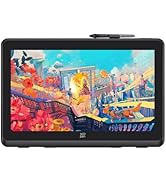
The XPPen Artist 22R Pro is a 21.5-inch full HD pen display tablet featuring 8192 levels of pressure sensitivity and 60° tilt support for ultra-precise drawing. It boasts 120% sRGB color accuracy and 16.7 million colors for vivid, true-to-life visuals. Equipped with 20 customizable shortcut keys and dual red dial wheels, it dramatically enhances workflow efficiency. The tablet supports seamless Type-C and HDMI connectivity, is compatible with Windows, MacOS, Linux, and Chrome OS, and includes an adjustable stand for ergonomic comfort. Ideal for graphic designers, illustrators, and animators seeking professional-grade performance without the premium price tag.


| ASIN | B07ZJLXDZP |
| Active Surface Area | 476.064*267.786 square inches |
| Additional Features | Shortcut Key |
| Best Sellers Rank | #7 in Computer Graphics Tablets |
| Brand | XP-Pen |
| Built-In Media | 1 x XP-Pen 21.5” Graphics Display 2 x Battery-free Stylus 1 x Type-C to Type-C Cable 1 x VGA Cable 1 x HDMI Cable 1 x Power Adapter 1 x Power Cord 1 x Pen Holder (8 replacement pen nibs) 1x Type-C to USB Adapter 1 x Quick Guide 1 x Cleaning Cloth |
| Color | Black |
| Compatible Devices | Windows 7 and above/ Mac OS X10.10 and higher |
| Connectivity Technology | USB |
| Customer Reviews | 4.5 out of 5 stars 11,108 Reviews |
| Display Type | LCD |
| Item Dimensions L x W | 22.4"L x 13.18"W |
| Item Height | 44.8 millimeters |
| Item Weight | 7 Kilograms |
| Manufacturer | XP-PEN |
| Model Name | Artist 22R Pro |
| Model Number | Artist 22R Pro |
| Native Resolution | 1920x1080 |
| Operating System | Windows11/10/8/7, Mac OS X10.10 and higher |
| Pressure Sensitivity | 8192 Levels |
| Screen Size | 21.5 Inches |
| Special Feature | Shortcut Key |
| Specific Uses For Product | Editing |
| Target Audience | Teacher |
| UPC | 654913040075 |
| Warranty Description | 1 Year Warranty |
D**B
Great Drawing Pad
I bought this for my girlfriend for Christmas, and she very much enjoys using it. As a graphic designer, she feels her largest shortcoming is being able to translate her drawing to the computer. She said this pad is easy to use, the touch sensitivity is extremely helpful, and it is overall well-made. It has tremendous value as a gift to any artist that you are looking to give it to, and it can easily fit both in your lap and on a desk. My only advice is make sure you buy a screen protector to use with it because I have heard from friends who bought one that it can scratch if you don't get a screen protector.
A**H
Great quality at an even better price
I bought this tablet because I can't afford the Wacom 24". Honestly I was expecting a lesser product and wasn't sure I'd keep it since I've never tried an XP-PEN tablet before.... but it is absolutely phenomenal and I am so glad I made this purchase. I also watched about 4 hours of YouTube reviews before I finally made the purchase, if you're curious about the research that went into this. Pros: - Love the express keys. This makes it a lot easier to just paint without technology getting in the way. - The wheels on both sides are SO USEFUL. I set the left wheel to change brush size and the right wheel to change the zoom. Having two wheels like this has changed my art life. - I don't have to use a keyboard!! With brush size and zoom on the wheels and save/undo/redo/hand tool for moving canvas/copy/paste/ctrl/alt etc set to express keys, I literally do not have to touch the keyboard during an art session. - It might not be 4K but 2K is honestly just fine and allows you to paint very clearly. If you do not normally work on a Retina or other 4K+ screen resolution, you probably won't notice much of a difference. I work on two 5K monitors for work during the day at my non-art job and moving to this for art doesn't bother me at all. - The colors are excellent! When I went to color adjust in Photoshop at the end of a piece, I....... didn't have to do anything. I usually have to adjust colors on a finished piece when drawing in SAI on Windows then moving back to MacOS, and in this case the colors were very well represented. - I use Parallels for Windows programs and I was able to get the tablet to work perfectly in Parallels. More details at the end of this review for any users who are on a Mac but use Parallels. - The extra pen included in the box is AWESOME. It also comes with a bunch of extra pen nibs. - The feel of the screen is pretty great. Some reviewers on YouTube wren't that happy with it but unless you're a professional artist who has been working with a Wacom display every day for years, you'll probably be fine. - They include a nice drawing glove that actually fits alright. - There is a pen holder that you can screw into the right side of the display and they even include a little screwdriver for it. - XP-PEN support is PHENOMENAL. I had a small thing to resolve with my order and they were able to resolve it quickly with no issues and went above and beyond to ensure I was satisfied. They were very courteous and kind. If you have to work with their support team for whatever reason, they'll take care of you! Be patient as their support hours may differ during covid times. - The pen experience is great. I've painted a few 10+ hour paintings now with this display and I've not had any issues. Apparently some Wacom 24" users were not as pleased with the pen experience but I wouldn't know, since I can't afford to drop a couple grand on a Wacom... lol. I think this pen does the job just fine. It's fairly light if that makes a difference to you, but I prefer that. Cons: - When I plug the display into my MacBook Pro, sometimes I have to unplug another monitor for it to register the display. Not a big deal and only really matters if you're using multiple monitors. - The screen has a bit of glare so you may need to close the blinds behind you when working or position the display appropriately. All in all, this is a phenomenal display--especially for the price. I'm extremely satisfied with my purchase and if they ever come out with a 4K version, you bet I'll buy XP-PEN again. You can check out some of the art quality I was able to achieve on Instagram: @microsoftoven. I'm a hobbyist when it comes to art, but this display made my workflow super smooth and I loved every second of it! Parallels pro tips: If you're like me and want to paint in SAI but have a Mac, Parallels is AWESOME for this. Here's how it works: - Run Parallels in windowed mode - Install the PenTablet drivers into Windows as well (the latest version worked for me) - Click the USB icon at the top of the Parallels window and make sure you connect the Artist24 Pro display via USB in this dropdown - Go to mouse preferences and enable short mouse trails (I have no idea why this works) - You might have to toggle Windows Ink on/off - If there is any difference in the pen tip location and the cursor, you can use the PenTablet driver calibration tool or adjust the X/Y values in the Work Area -> Tablet/Display options to match them up. With all of those above steps, I've been able to paint away in SAI with absolutely no problems. Full pressure sensitivity, all express keys and wheel functions.. the whole 9 yards.
S**H
Personally, zero issues. Great for the price.
So, to start, I've seen a number of reviews that said they were completely unable to make this work with a multi-monitor set up, but I found this to be false in my case. I have two regular monitors, and this acts as a third. It took a bit of work, but I finally found the way to set it up properly and have had zero issues since then. There was only a really, really tiny scratch on the screen (which I think was my fault, but I have no memory of if it was on there before I peeled off the plastic or not, and it's only able to be noticed at specific brightness levels and angles, and has no impact on functionality or detection). I purchased this in February of 2019 though, so maybe earlier products had some issues that mine didn't. In terms of technical functionality, I use Krita with it, and the detection, tilt support, etc. of the display worked great once I set Krita to use the proper amount of RAM. For Krita at least, there's definitely an issue with detection if the program has restrictions on how much RAM from your computer it's able to process, it might seem like the detection of the display isn't that great, but it's possible that it's actually the above-mentioned RAM restrictions, so if you're having trouble like I was, try to check for that and adjust them to something suitable for your computer's specifications. As I said, after I diagnosed that it had nothing to do with the display, I've had no issues and haven't had to adjust a thing. On to the actual user experience of it, it's very simple to set up (if you have multiple monitors, you might have to put in a bit more effort), and you can pretty much plug it in and go once the driver is set up. The length of the HDMI cord it comes with is decent, so unless you have a behemoth of a workspace, you should have plenty of length to position the display wherever you'd like. The weight of the pen definitely comes down to personal preference, but as someone who prefers the weight of something like a nice ballpoint pen, it feels perfect. The display itself has a good weight to it, so it doesn't feel so light it'll slide away if you put any pressure on it, but it doesn't feel so heavy that it's unpleasant to have it sitting in your lap for long periods. It also doesn't generate a lot of heat either like a laptop or tablet might, so again, it's great for long drawing periods or using it to take digital notes for studying or other academic/creative tasks. My only criticism here would be that the stand that it comes with really only has one, single resting position, so depending on how you like your drawing medium to be angled while you work, definitely look in to getting a display that has multiple locking positions. All in all, despite what some of the reviews say, my experience with this has been virtually flawless, with most issues either being outside of the tablet, requiring some minimal effort to fix, or being so trivial that it doesn't have an effect on experience or functionality. For the price it's at, I highly recommend this display.
E**N
Few nitpicks/quirks but overall an excellent choice
So I've had this product for probably six months now and overall, I do really enjoy it. It's an amazingly affordable alternative to the wildly expensive cintiqs, and frankly it does everything I need it to do and then some. There's so many buttons on this thing I actually ran out of things to map them to! The pressure sensitivity is great, the colors are accurate, and I really love working on it. It functions like most tablet monitors on the market, which is to say you do need to calibrate it every time you sit down in order to make sure your cursor actually lines up with the tip of the pen. This is because the glass has some thickness to it, as is very common in conventionally-available tablet monitors these days, so there's some parallax. My only real problem with this is that the UI of the drawing program I use (Clip Studio) only appears in whichever monitor is designated "monitor 1," and EX-Pen's software will only allow the calibration to appear in whichever is designated "monitor 2." I have searched high and low online and contacted their customer support to no avail as far as seeing if this can be changed. So every time I need to calibrate it, I have to open my settings, change the monitor of my laptop to be "monitor 1," set the tablet area in the XP-Pen program to be "monitor 2," do the calibration, then change the tablet to be "monitor 1" again, and THEN set the tablet area in the XP-Pen program to be "monitor 1." It's the single most frustrating thing about this device, and it makes what should be a ten-second process take like three minutes. So if you're a Clip Studio user...be aware of that I guess. It's obviously not the end of the world, nor does it impede the overall usability of this monitor, it's just super annoying and I'd really like the manufacturers to fix it in a software update. This is also a little bit of a nitpick, but the display does not get super bright and the anti-glare coating is not very strong. I actually prefer a weaker anti-glare coating myself because those nano-textured things tend to mess with colors, but the fact that the display can't get brighter to make up for that is a little annoying. I prefer to have natural light in my room so during the day I have my blinds open, but I have to close them if I'm using this monitor at certain angles because it impedes my ability to see what I'm working on. I've attached a photo of how strong the reflection from my window is, and the sun isn't even shining into my room. To give you an idea, in all three pictures where the monitor is on, it's at max brightness. I will be honest, though, those are very minor problems compared to other tablet-related nightmares I've had from other companies. Overall this product is spectacular, gets the job done well, doesn't require me to be heavy-handed to get good lines down, and most importantly displays my colors very accurately. At the end of this day, I would highly HIGHLY recommend this product over other similar-priced or more expensive tablet monitors, and I hope the feedback I've provided will make the next generation of these beasts even better.
D**T
Best budget drawing tablet in the world
Fantastic product! Very nicely packaged! Very durable and has a good amount of weight to it. Stays charged! The touch sensitivity is absolutely phenomenal, you can't go wrong with this one! Also it's very easy to set up!
C**E
Call chat support when you set up
I had a pretty hard time figuring this out at first. I'm pretty new to digital tablet art so I was taking it slow and reading the manual and I still couldn't figure out what to do. So I went to their website and under support I think it showed me how to connect to a USB on laptop or a computer. The hdmi cord goes from tablet to your monitor hdmi port. Then I finally saw my desktop on my new tablet and was amazed at what was happening finally. So in desktop I use pentablet tools mouse mode. Turn on a good art app like sketchbook or anything and then turn mouse mode off. The pen was jittery and crapoy and I was immediately not liking this tablet lol. I chatted with a support person. They said did I download the driver software for the pentablet and all that good stuff. I said yes but I wasn't sure which one to install so I have two different pen tablet folders in my Mavic mini. She was not happy about that haha. She's like, that's your problem. Trash or uninstall the one that says this (can't remember) it's one of the pen tablet folders. So I did now reboot computer a d tablet. I did. And guess what the pen works perfectly now. Use the hand glove it helps alot and your hand slides over glass better too. I'm stoked man. This tablet is amazing for a few hundred bucks. I paid more to get 3 years of insurance so hopefully don't have to use that. It's very well designed, made and very very good no lag in pen that I can see. You move the tip on the glass and the paint or pencil stroke keeps up with your moves pretty darn good. I still need to get used to drawing on yhis but it's awesome for traveling. Even has different plugs for different countries I think. The screen is fully laminated and so it works excellent without pen tip lag the colors are beautiful or ugly depending on how you mix the paints in your app, lol. Don't start a beginner on a crappy tablet, it's just totally hard to draw and will discourage them from doing digital art. Get one like this or this tablet. It's perfect for beginning artists because it works like a pencil or pastel or paintbrush to paper or canvas. My old tablet had the pen kag and redraw would take forever. It was a nightmare. So I never used it. This tablet will get used for sure, it's that good!!! Take care and keep making art live.....
J**Y
A few flaws, but a perfect first screen tablet!
I wanted to hold off writing this review until I'd used the product for a while. After months of intense daily use, I can finally say that this is 100% worth it! First, the few cons of this product. 1: There are three or four wires that use up all my USB slots and my single HDMI slot. If you don't have a big HDMI slot because you're using a laptop like I am, you'll need to buy an adapter for a mini USB. Not too expensive, but it did keep me from using it for another day. 2: I took the protective screen off because of bubbles and texture, and within two days there were little chips on the screen. It doesn't interfere with any drawing, but there are three of them on my tablet now which is a little annoying to look at when it's off. (First picture) 2.5: It's hard to see in the video but the pixels have a somewhat shimmery rainbow effect after removing the protective screen. I can tune it out easily, but it may bother other people. EDIT (2022) IT TOOK ME TWO YEARS TO REALIZE THERE'S A SECOND SCREEN PROTECTOR ON THIS THING. YOU TAKE OFF THE FIRST ONE AND THERE'S A SECOND ONE UNDERNEATH THAT'S SUPER HARD TO NOTICE AND IT ONLY STARTED COMING OFF IN THE CORNER AFTER TWO YEARS. THE ACTUAL SCREEN IS GLASS 😂😂😂 SO YEAH, THE BUBBLES ARE FROM THE SECOND PROTECTIVE SCREEN COVER WHICH LASTS A REALLY LONG TIME (though the rainbow shimmer from this one is still a pain to deal with!) 3: The glove it comes with does nothing to wick sweat, and leaves it smeared all over the tablet. I cut up an old cotton sock and it works much better. 4: Sometimes the pen seems to stop working. When that happens I unplug and replug either of the USB cables and it works again instantly. 5: The tablet is supposed to be able to act as a second moniter, but it doesn't register as one on my computer so it's basically like my computer screen is just projected onto the tablet. I can't tell if it's an issue with my laptop or the driver, but it works fine for me so I haven't called support about it. You may want to. (EDIT 2022) This fixed itself after a while - I think it was a problem with Windows, not the tablet itself. 6: The function keys only register 2 key presses at a time, so a command like "Ctrl+Shift+A" only registers "Ctrl+Shift." Most commands are only 2 anyways though. The pros: Everything else! The colors are beautiful and easily adjustable. The pen is sturdy and lightweight and has a wonderful little case with extra nibs. The cables are all together in 1 bundle so you won't lose them! Brightness is adjustable, and the 8 function cables + wheel are easy to use and vital! The driver did not have any negative interaction with my previously installed Wacom Bamboo drivers, and it works with Krita, Paint, and Photoshop as well as online art sites/programs. The packaging was cute and very secure, with concise instructions and multiple power adapters (but not a USA adapter) if you choose to power the tablet from an outlet rather than your computer (freeing up a USB space). It also shipped surprisingly fast considering the current situation, which was also current several months ago. Overall, I don't regret this purchase at all! I love using this tablet every day! Plenty of great features and very smooth lines and super sensitive pressure, which have me looking forward to even tedious drawings!
A**M
Update after 1 year: Bad start, great finish
This tablet display is offered as a professional, cost-effective alternative to a similar Wacom Cintiq for a fraction of the price. A deal that is hard to resist. Last July I ordered this tablet from Amazon but my enthusiasm waned quickly as I had all sorts of nightmarish usb/driver issues with the tablet. I contacted XP-Pen support and after some back and forth emails it was decided that the unit was defective and that they would happily replace it if I sent mine back to them. I bought this tablet as an import so I was looking forward to lose what I saved on sending the huge package back. Anyway after some months of looking for alternatives I decided to contact them again, bite the bullet and send it back via DHL. After some days I did receive a brand new, working unit sent for free in the US, no questions asked. I'm happy now. Prior to this I bought an used Huion Kamvas 20" tablet as emergency backup so having both I can give a fair, unbiased comparison of the two for those interested. Here goes. SCREEN Huion: 1080p (1920 x 1080) Xp-Pen: 2.5k (not 4k) - 2560 x 1440 The XP-Pen clearly wins here in screen real estate, although to be fair my Huion isn't 2.5 or 4k - Image quality is another plus with the XP-Pen, colors are spot on and more balanced. On the Huion the colors always appeared washed out no matter how much I adjusted it. Sure there are 4k tablet displays now, but they still come at a price. STYLUS / PRESSURE SENSITIVITY XP-Pen: 9.5/10 Huion: 9/10 No significant difference, both are equally responsive, battery-free and precise. DRIVER SOFTWARE XP-Pen: A crapshoot Huion: It just works XP-Pen has sort of a mess with its drivers, there's an "official" driver and a "new" driver. On my Mac Mini with Monterey OS 12.2, the so-called new driver performs much better than the official one, probably because it is updated more frequently. I was having all sorts of odd crashes and non-responsiveness issues with the official driver. TABLET KEYS XP-Pen: 20 Keys + 2 jog wheels Huion: 16 Keys + 2 sliders The Huion keys are recessed and touch-activated, the XP-Pen keys feel slightly cheaper at touch but this has proven to be a non-issue on my day-to-day usage. I like having 2 separate wheels for zoom and brush size — something I couldn't do with the Huion. CALIBRATION/PARALLAX/LAMINATION XP-Pen: Very precise even on corners Huion: More precise at center of tablet I tend to use this tablet's surface more at its center so either of them is OK with me, once calibrated I'm impressed with the precision range of the XP-Pen though. ANGLE ADJUSTEMENT Both tablet displays offer great options and flexibility, so it's a tie for me. However in the photo provided you can see I am using my tablet with the Amazon Basics Single Monitor Stand which has proved to be a good complement, can deal with this heavy tablet without a hiccup, and allows me to put it away when I'm not using it - freeing a lot of desk space.
Trustpilot
Hace 5 días
Hace 1 mes